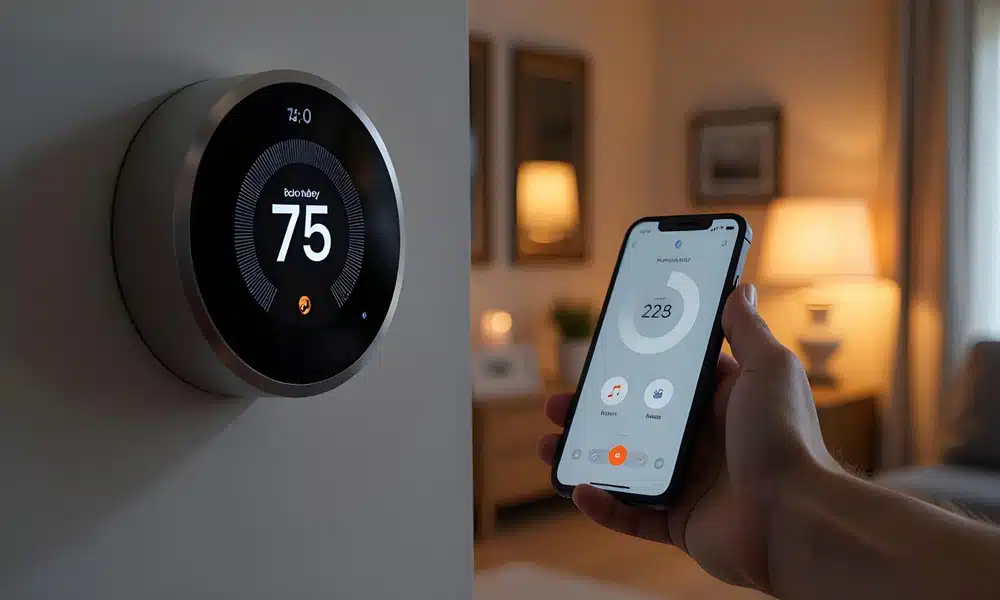
The Honeywell T5 Thermostat is a powerful tool for managing your home’s energy consumption. With its ENERGY STAR® certification, geofencing capabilities, and smart scheduling, it offers multiple pathways to reduce your heating and cooling bills—often by 8-16% for users who take full advantage of its features.
This guide provides five actionable tips to help you maximize those savings, turning your T5 into a money-saving asset for your household.
1. Master Geofencing: The Ultimate “Set and Forget” Tool
The most powerful energy-saving feature of the Honeywell T5 is its geofencing technology. Unlike traditional programmable thermostats that rely on fixed schedules, geofencing uses the location of your smartphone to know when you are home and when you are away.
How Geofencing Saves Energy
Geofencing creates a virtual perimeter around your home. When the last person leaves this zone, the T5 automatically switches to your “Away” temperature settings, preventing you from heating or cooling an empty house. When you cross back into the zone on your return, it switches to “Home” mode, ensuring the house is comfortable when you arrive.
Best Practices for Geofencing
To maximize savings with this feature, you should utilize the “Auto Home and Away Mode.” The official Honeywell Home documentation confirms that by using geofencing, the device stops heating or cooling until you are close to home, which results in direct savings on energy costs.
For the best experience:
-
Enable Geofencing for All Household Members: Ensure everyone in the family has the Resideo app on their phone with geofencing enabled. The thermostat uses the location of the last person to leave and the first person to return to switch modes.
-
Set Meaningful Temperature Differentials: When configuring your “Away” settings, be aggressive. In the winter, set the temperature to 62°F (as suggested in the default schedule) and in the summer, set it to 85°F. This maximizes the time your HVAC system remains idle.
-
Combine with Schedule (Optional): You can use geofencing with a time-based schedule. For instance, if you want the temperature to drop earlier than your departure time on a specific day, a mixed approach offers flexibility.
2. Optimize the Schedule to Capture 8-16% Savings
While geofencing is excellent for unpredictable days, creating a consistent 7-day flexible schedule is where the T5 really shines. Data shows that high usage of the scheduling feature saved customers between 8-16% on their heating and cooling bills.
Setting Up an Efficient Schedule
You can program the T5 for four periods per day: Wake, Away, Home, and Sleep. To maximize savings:
-
Wake (6:00 AM): Set this to the temperature you want while getting ready for the day.
-
Away (8:00 AM): Set this to an energy-saving temperature. By default, the T5 suggests Cool: 85°F and Heat: 62°F. This is the period where you save the most money.
-
Home (6:00 PM): Set this to your ideal comfort temperature for when you return from work.
-
Sleep (10:00 PM): Set this to a moderate energy-saving temperature, utilizing heavier blankets in winter to stay comfortable.
Utilizing Smart Response
To ensure your home is at the right temperature at the scheduled time—not starting to heat or cool at that time—enable Smart Response Technology (also called Adaptive Intelligent Recovery). This feature learns how long your home takes to heat up or cool down and starts the system early so that your desired temperature is achieved exactly at the time you have set in the schedule.
3. Leverage the Circulate Fan Mode for Even Temperatures
Most homeowners set their thermostat fan to “Auto,” meaning the fan only runs when the system is actively heating or cooling. However, the Honeywell T5 offers a “Circulate” feature that can improve comfort and efficiency without drastically increasing energy use.
What is the Circulate Feature?
Available under the Fan setting in the Resideo App, the Circulate feature turns on the fan for 30% of the time every hour. This runs the fan independently of the heating or cooling system.
Why This Saves Energy
By circulating the air, you eliminate “hot spots” and “cold spots” in your home. Because the air is constantly being mixed, the temperature sensor on the T5 reads a more accurate average temperature. This prevents the furnace or AC from short-cycling (turning on and off frequently) due to a localized draft near the thermostat. It helps maintain a consistent temperature, so your primary HVAC equipment runs more efficiently and for shorter durations.
4. Understand and Utilize the “Hold” Feature
Life is unpredictable. Sometimes you are home on a day you are usually away, or a heatwave requires a temporary reprieve from your energy-saving settings. The T5 handles this with two distinct “Hold” features: Temporary and Permanent.
Temporary Hold (The Energy Saver)
If you simply adjust the temperature dial on the thermostat, you initiate a Temporary Hold. The screen will display “HOLD UNTIL” followed by the time of the next scheduled change. This is the best way to override the schedule temporarily because it automatically ends at the next program period. This ensures you don’t accidentally leave the AC blasting all night after a hot afternoon, which wastes energy.
Permanent Hold (Use with Caution)
If you touch the “HOLD UNTIL” message and select Permanent Hold, the thermostat will ignore your schedule indefinitely and maintain the manual temperature you set.
-
Warning: If you use Permanent Hold, you will lose your energy savings. Only use this if you are on vacation and want to maintain a constant temperature, or if you have disabled scheduling for a season.
-
Note: When Geofencing is enabled, Permanent Hold is disabled to prevent locking the system into an inefficient mode.
5. Enable Maintenance Alerts and Energy Reports
The T5 is not just a thermostat; it is a diagnostic tool for your HVAC system. A well-maintained system runs more efficiently, saving you money. The T5 helps with this through smart notifications and reports.
Filter Change Reminders
A dirty air filter can increase your energy consumption by forcing your HVAC system to work harder. In the Resideo app, you can set a reminder for when to change your filter. The T5 will send you a push notification when it is time for a replacement, ensuring your system always has optimal airflow .
Monthly Home Energy Reports
One of the most valuable features hidden in the app is the Monthly Home Energy Report. This report analyzes your heating and cooling patterns and compares your energy consumption to similar homes in your community.
-
How it helps: These reports provide personalized advice on minimizing energy usage. You can see if you are using more energy than your neighbors and adjust your habits or schedule accordingly to cut down on bills.
Extreme Temperature Alerts
Set up notifications to alert you if the indoor temperature falls below or rises above a certain threshold. This not only protects your pipes from freezing in the winter but also alerts you if your HVAC system fails while you are away, allowing you to address the issue before energy is wasted or damage occurs.
Conclusion
The Honeywell T5 Smart Thermostat is a sophisticated energy management system disguised as a simple wall device. By enabling geofencing to react to your presence, refining your 7-day schedule to target savings during unoccupied hours, utilizing the circulate fan function, using holds correctly, and acting on maintenance alerts, you can significantly lower your utility bills.
To get started, download the Resideo app, ensure your T5 is connected to WiFi, and take 10 minutes to configure your location-based settings. The initial setup effort will pay for itself in the savings you see on your next energy bill.
FAQ
Q: What is the average energy savings with the Honeywell T5?
A: According to retailer data, high use of the scheduling feature saved customers between 8% and 16% on heating and cooling bills. Actual savings vary based on home size, local climate, and usage habits.
Q: Do I need a C-wire to install the Honeywell T5?
A: Yes, the Honeywell Home T5 requires a 24 VAC power supply (C-wire) to function properly. However, if your home does not have a C-wire, a C-wire adapter kit is included in the box to provide power.
Q: Does the Honeywell T5 work with electric baseboard heat?
A: No. The T5 is not compatible with electric baseboard heating systems (120-240V). It is designed for forced air (gas, oil, electric), hot water, steam, and heat pumps with electric backup.
Q: How does the T5 know when I am away?
A: It uses geofencing technology. You grant the Resideo app permission to track your smartphone’s location. When your phone crosses a virtual boundary (geofence) around your home, the thermostat switches to “Away” mode.
Q: What is the difference between Temporary Hold and Permanent Hold?
A: Temporary Hold keeps your manual temperature setting until the next scheduled program period (e.g., Wake or Sleep) and then resumes the schedule. Permanent Hold overrides the schedule indefinitely and keeps the temperature constant until you manually cancel it .
Q: Can I control the T5 with voice assistants?
A: Yes. The T5 Smart Thermostat works with Amazon Alexa, Google Assistant, and Apple HomeKit (Siri), allowing you to change the temperature using voice commands.
Q: How do I turn off the schedule to keep a constant temperature?
A: To keep a constant temperature, you must use the Permanent Hold function. Adjust the temperature on the thermostat, tap the “HOLD UNTIL” text on the screen, and select “PERMANENT HOLD” . Alternatively, you can disable scheduling entirely within the app.
Q: Why is my thermostat showing “Recovery”?
A: “Recovery” (or Smart Response) indicates the thermostat has started heating or cooling early to ensure your home reaches the set temperature by the time your schedule says it should. This ensures comfort without wasting energy by running the system too long.