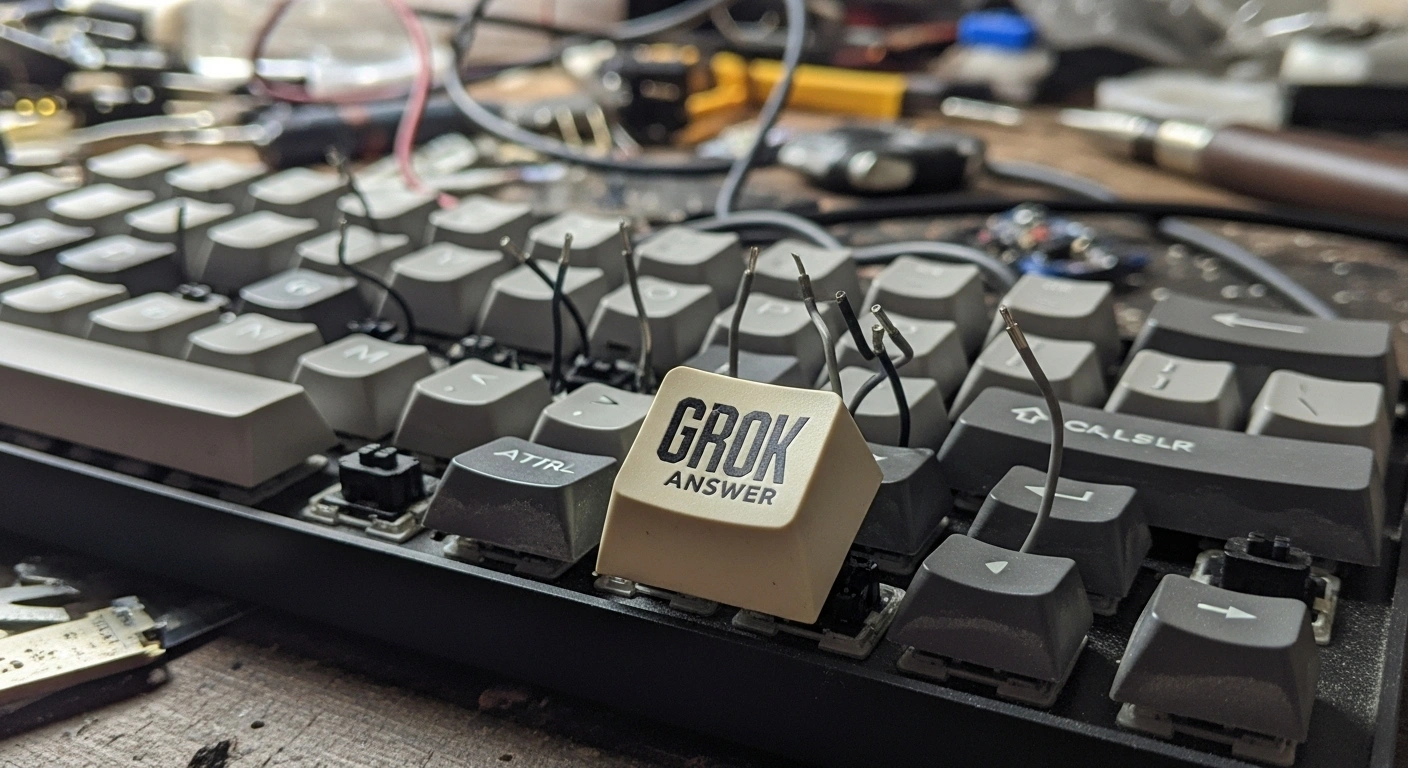
The phrase “broken keyboard grok answer” has become a search trend in 2026, but it points to two very different problems that frustrate users in equal measure. One is a straightforward Python coding challenge on the Grok Learning educational platform, where students must filter out characters typed on a broken keyboard. The other is a hardware interaction issue with the Grok AI chatbot, where keyboard input stops responding or specific keys misbehave.
Understanding which “broken keyboard grok answer” you need is the first step to fixing it. This guide covers both scenarios thoroughly.
Understanding the Two Meanings of “Broken Keyboard Grok”
Before diving into fixes, let’s clarify the ambiguity. The search term “broken keyboard grok answer” most commonly refers to a specific Python programming challenge on Grok Learning (groklearning.com). This is an educational platform used by thousands of school and university students across Australia, the UK, and globally.
In this challenge—typically found in Module 4, the strings module—students write Python code to filter out broken key characters from a typed string. The problem has nothing to do with hardware and everything to do with understanding string manipulation in Python.
However, some users searching for “broken keyboard grok answer” are actually experiencing physical keyboard issues when using the Grok AI chatbot (grok.com or the xAI app). These users find their keyboard input stops being accepted in the Grok AI chat interface, or specific keys misbehave.
The fixes differ entirely based on which problem you have. This article addresses both.
The Grok Learning Broken Keyboard Python Challenge
What the Challenge Actually Asks
Here is the broken keyboard problem in plain English. Imagine someone is typing on a keyboard, but some keys are broken and don’t work. Whenever they press a broken key, nothing appears. If the letter “l” is broken and someone tries to type “Hello”, what comes out is “Heo”—the two “l” characters just disappear
Your job is to write a Python program that simulates this. Your program receives two inputs :
-
Line 1: The text the person tried to type
-
Line 2: A string containing all the broken key characters
Your program should print the text with every broken key character removed. For example:
-
Input line 1:
Hello World -
Input line 2:
lo -
Output:
He Wrd
Every “l” disappears. Every “o” disappears. The space remains because it’s not in the broken keys. What remains is “He Wrd”.
Why Students Fail This Challenge
Half the students who get stuck on this challenge are stuck not because they don’t know Python—they are stuck because they didn’t fully understand the problem.
Common mistakes include:
-
Trying to use
.remove()which is for lists, not strings -
Using
.replace()incorrectly, especially in a loop -
Using
.split()which breaks when the text contains spaces -
Assuming case handling incorrectly
-
Not preserving the original character order
In 2026, Grok has doubled down on logic over memorization. The automarker is stricter. Formatting matters more. Order of operations is non-negotiable
The Working Solution Explained Line by Line
The cleanest approach is a simple loop that checks each character individually. Here is the working code:
text = input()
broken = input()
result = ""
for char in text:
    if char not in broken:
        result += char
print(result)
Let me walk through every single line :
Line 1: text = input() Reads the first line of input—the text the person tried to type. On Grok Learning, the automated tests feed this line automatically.
Line 2: broken = input() Reads the second line—the string of broken key characters. If the broken keys are “a”, “e”, and “o”, this line reads “aeo” and stores it. Important: the order matters. Text first, broken keys second. Swap them,n and ourour codeils every time.
Line 3: result = "" Creates an empty string. Think of it as a bucket. You will drop each valid character into this bucket. Strings in Python are immutable, so you cannot modify text directly.
Line 4: for char in text: loops through the string one character at a time.
Line 5: if char not in broken: Checks if the character is NOT a broken key. If yes, we keep it.
Line 6: result += char Adds the character to the result string.
Line 7: print(result) Output the cleaned text.
Alternative One-Line Solution
If you know list comprehension, here is a more compact version:
text = input()
broken = input()
print("".join(char for char in text if char not in broken))
This does the exact same thing. The generator expression keeps only characters not in broken, and "".join() Combines them into a single string.
When to use which: Use the shorter version if you are comfortable with generator expressions. Use the longer version if you are a beginner, need to debug, or prefer readability. Both versions pass the automated tests
Why Order Matters: The #1 Failure Point
This is the #1 failure point in broken keyboard problems. String methods scan left to right. If you replace small patterns first, you destroy larger ones.
For example, consider a variant where you need to replace “###” correctly. If you replace “#” first, you destroy “###” and produce the wrong output. Handle longest patterns first.
Rule: Handle longest replacements first. This single insight solves most “but my code is right” cases.
Common Errors That Cause Test Failures
| Issue | Example | Result |
|---|---|---|
| Trailing space | hello |
Fail |
| Extra newline | hello\n |
Fail |
| Wrong case | Hello vs hello |
Fail |
| Missing empty output | Should print nothing | Fail |
| Wrong replacement order | Replace # before ### | Fail |
Green Tick Rush Tip: Always check whitespace before rewriting logic
Problem Variants You’ll See
Grok intentionally rotates constraints to test understanding, not memorization :
| Variant Type | What Changes | Common Pitfall |
|---|---|---|
| Lowercase-only | Uppercase discarded | Reused uppercase solution fails |
| Uppercase-only | Lowercase discarded | Case assumptions |
| Repeated keys | ### ≠ # | Wrong replacement order |
| Symbol-disabled | Letters only | Extra punctuation |
| Whitespace rules | Space kept or removed | Invisible output errors |
If your solution fails “randomly,” it’s usually because the variant changed.
Expert Checklist Before Submitting
Before clicking submit :
-
✅ Rules followed exactly
-
✅ No assumptions reused from older problems
-
✅ Order preserved
-
✅ Longest replacements handled first
-
✅ Output formatting verified
-
✅ Python 3.12+ syntax used (modern Grok standard)
Why Universities Use This Problem
The broken keyboard challenge teaches three core concepts :
-
Strings are immutable—you don’t “fix” a string; you build a new one
-
Character filtering logic—every character must be evaluated against explicit rules
-
Strict output discipline—formatting errors are treated as logic errors
On the myGrok dashboard, this problem directly affects your Problem Mastery score, which is why Grok enforces it so aggressively.
The Grok AI Keyboard Input Issues
The Enter/Return Key Problem
A significant number of users experience issues with the Enter/Return key in the Grok AI app. According to a recent review, in version 1.1.50 of the Grok app, pressing the Enter/Return key always sends the message immediately, even when using the Gboard keyboard.
There is currently no way to insert a new line without sending. Shift+Return, long-pressing space, and other common methods do not work for line breaks. This makes typing anything longer than a short sentence extremely frustrating and prone to accidental sends.
Workarounds:
-
Type longer messages in a notes app and paste into Grok
-
Use the web version if the app’s keyboard behavior is problematic
-
Wait for a fix in future updates—this appears to be a known issue
Cursor Keys Not Working
Some users have reported cursor keys not working in Grok CLI on various terminals. According to a GitHub issue report, left arrow keys produce no cursor movement on Ubuntu, tmux, and xterm terminals. In some terminals, pressing the left arrow prints “[D” instead of moving the cursor.
This appears to be a terminal compatibility issue with the Grok CLI rather than a general Grok problem.
The “Grok Answer” Typo-Hunting Issue
A different issue has emerged with Grok AI’s typo-hunting capabilities. When users ask Grok to find typos in text, Grok sometimes returns incorrect results—finding only one typo where multiple exist, or generating “Stylistic Notes” that are mostly wrong for the context.
The fix: Prompt Grok with “Are there any typos in this text?” along with pasting the text in the same prompt. This leads to much deeper analysis. Also, keep input chunks under 2,000 words for best results and always verify the output.
Content Moderation and Auto-Retry
Some users experience issues with Grok’s content moderation. When a prompt gets rejected with a “Content Moderated” error, the text you typed disappears.
The fix: A third-party Tampermonkey script called “Grok Auto-Retry + Prompt Snippets + History + Favorites” can automate the fix. It caches your text as you type, and if a moderation error occurs, it automatically restores your text and clicks the retry button.
Alternatively, copy your prompt before submitting as a safety habit.
Grok Extract: Getting Prompt Instead of Response
A bug exists where Grok extract functions target the user message’s copy button instead of the response’s copy button. The response copy button is below the viewport after sending.
The fix: Use Ctrl+End to scroll to the absolute bottom before finding copy buttons. This ensures you copy the AI’s response rather than your own prompt.
Recent Bug Fixes
According to Grok’s April 2026 release notes, the team has fixed issues with the on-screen keyboard opening when tapping buttons in voice mode. The voice transcript now also auto-scrolls during long responses.
FAQ
What does “broken keyboard” mean in Grok?
In Grok Learning, “broken keyboard” refers to a string manipulation challenge, not a physical keyboard issue. You are given an input string and must filter out invalid characters based on specific rules, while preserving the original order and formatting exactly as required
Why does my output look correct but still fail in Grok?
Most failures happen due to invisible or logical edge cases, such as extra spaces, trailing whitespace, an extra newline, incorrect replacement order, or misinterpretation of case or symbol rules. Grok’s automarker compares output character by character, so even small formatting differences cause failure.
Can broken keyboard problems vary in Grok?
Yes. Broken keyboard problems intentionally vary between exercises. Rules may change around allowed characters, case sensitivity, repeated-character behavior, and whitespace handling. This tests whether you understand the logic framework, not whether you memorized a past solution.
Can regex solve broken keyboard problems reliably?
Regex can solve some broken keyboard problems, but it is not the safest approach. Simple character-by-character loops are more reliable in Grok because they preserve order naturally, handle edge cases more clearly, and reduce hidden test failures. For beginners and most Grok exercises, loops are preferred.
Why is order important in broken keyboard solutions?
Order matters because string operations are processed left to right. If you replace or remove characters in the wrong sequence, earlier changes can alter later matches, causing incorrect output—even if your logic seems correct. This is one of the most common reasons Grok solutions fail.
Is copying a broken keyboard solution safe?
No. Copying GitHub solutions is risky because many repositories solve older or different problem variants, small rule changes cause copied code to fail, and you miss understanding the logic Grok is testing. In 2026, Grok’s automarker is stricter, making copied solutions unreliable.
How do I type multi-line messages in the Grok AI app without sending?
Currently, this is a known issue. In version 1.1.50, pressing Enter always sends the message immediately. Shift+Return and other common methods don’t work. Consider typing longer messages elsewhere and pasting them in, or using the web version.
Why does Grok keep failing my prompts with moderation errors?
Grok’s moderation system blocks prompts that violate content policies. However, some users experience false positives or inconsistent moderation. A third-party script can cache your text and auto-retry. You can also paste prompts in a plain text file before submitting to avoid losing work.
How can I reliably use Grok for typo hunting?
Keep input chunks under 2,000 words. Use the prompt “Are there any typos in this text?” along with pasting the text in the same prompt, not separate messages. Always verify the output, as AI can miss typos or suggest incorrect stylistic changes.
What if my Python code passes local tests but fails Grok’s automarker?
Check for invisible whitespace issues. Grok’s automarker is extremely strict about trailing whitespace and extra newlines. Also verify your code handles edge cases like empty input or repeated characters correctly, and check that you’re preserving original character order
Conclusion
The “broken keyboard grok answer” issue is not one problem but two. For Grok Learning students, the fix is understanding string immutability and using a simple character-by-character filter loop. For Grok AI users experiencing keyboard input problems, the fixes range from using workarounds for multi-line input to applying third-party scripts for moderation errors.
Understanding the exact problem you’re facing saves hours of frustration and leads to the green tick every time.